

How to Delete a MetaMask Account: The Easiest Ways in 2026
MetaMask is still one of the most widely used self-custody wallets, and it has grown well beyond its Ethereum roots. Consensys, the company behind it, rolled out native Bitcoin support in December 2025 and added Solana, so a single MetaMask wallet can now hold accounts across several blockchains. With more accounts living in one place, there are plenty of moments when you want to tidy things up, retire an old address, or clear out an account you imported for a one-off task.
If you have landed here looking for how to delete an account on MetaMask, there is one thing worth knowing before we start: the way MetaMask handles this changed. The old route through the Portfolio dashboard is gone, and whether you can remove an account now depends on how that account was created. This guide walks through the current process for both the browser extension and the mobile app.
Can I Delete a MetaMask Account?
Let us settle the question that brought you here. You cannot truly delete a MetaMask account. Every account address is written to the blockchain, and once an address exists it stays there permanently. Nothing in MetaMask, or anywhere else, can erase it.
What you can do is manage which accounts appear inside your wallet. MetaMask gives you two separate tools for that, and the one available to you depends on the account type:
- Hide the account so it no longer clutters your account list. This works for any account, but only in the browser extension.
- Remove the account from your wallet entirely. This is only possible for accounts you imported with a private key or JSON file, and for hardware wallets.
MetaMask confirms this directly in its official help center. Removing or hiding an account only changes what you see inside the wallet interface. The address and its transaction history stay on the blockchain regardless.
The key change for 2026: accounts you created inside MetaMask (the ones derived from your Secret Recovery Phrase) can no longer be removed at all. You can only hide them. The Remove option now appears exclusively for imported accounts and hardware wallets. If you do not see a “Remove account” option next to an account, that account can only be hidden.
Hide vs. Remove: Which One Applies to Your Account
Before touching anything, it helps to know which category your account falls into, because that decides what you are allowed to do.
- Created accounts (added with the “Add account” button and derived from your Secret Recovery Phrase): these can only be hidden, and only on the extension.
- Imported accounts (added with a private key or JSON file): these can be removed on the extension. On mobile they cannot be removed.
- Hardware wallet accounts (Ledger, Trezor and similar): these can be removed on both the extension and mobile.
- Social login wallets (set up with a Google or Apple account): these accounts stay permanently linked to that login, so they can only be hidden, never removed.
How to Hide a MetaMask Account (Browser Extension)
Hiding is the tool you will use most often, since it covers every account you created inside MetaMask. It is available only in the browser extension.
Step 1. Open the Account Selector
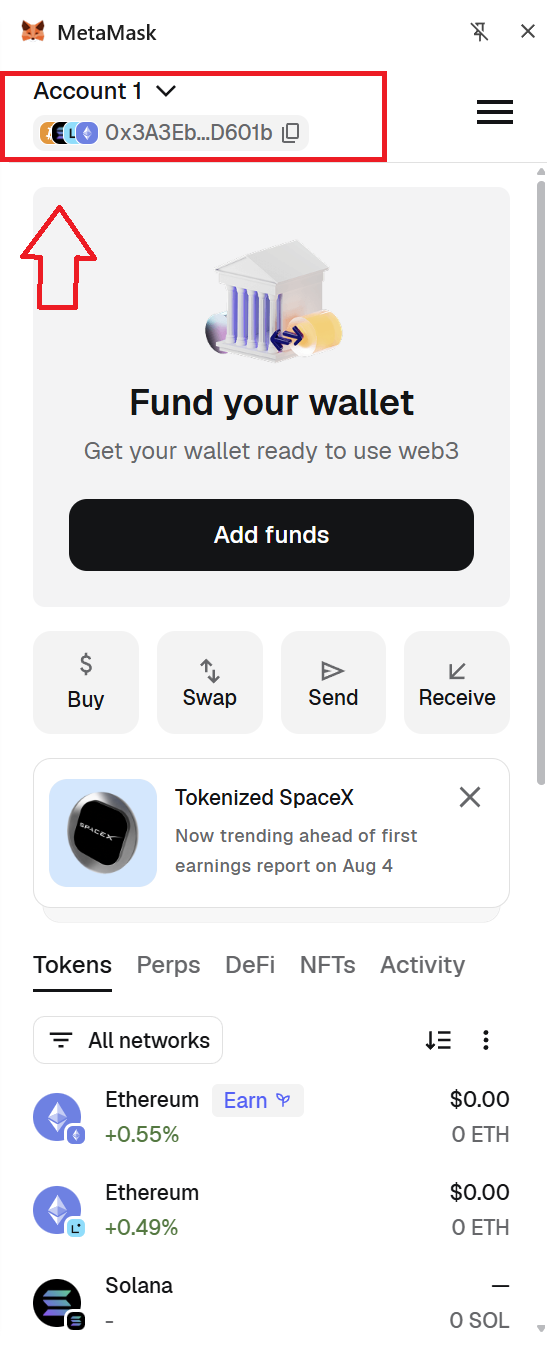
Open the MetaMask extension and click your account name with the small down-arrow at the top left. Make sure you click the account name itself, not the address pill just below it, since that pill opens your network addresses instead. MetaMask opens the Accounts screen, which lists every account in your wallet.
Step 2. Open the Three-Dot Menu
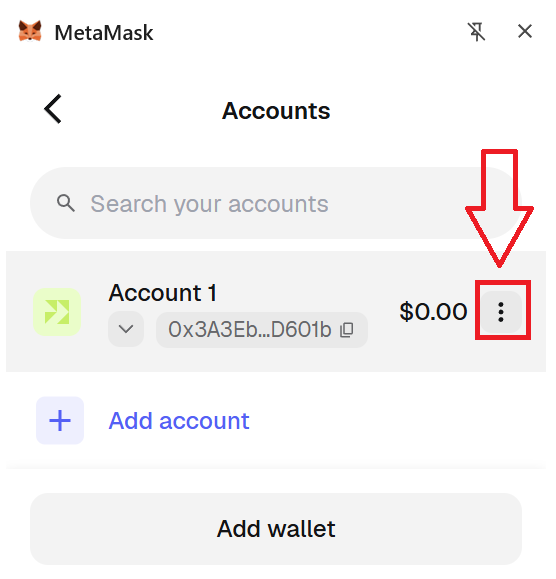
Find the account you want to tuck away and click the three vertical dots at the far right of its row, next to the balance.
Step 3. Click “Hide Account”
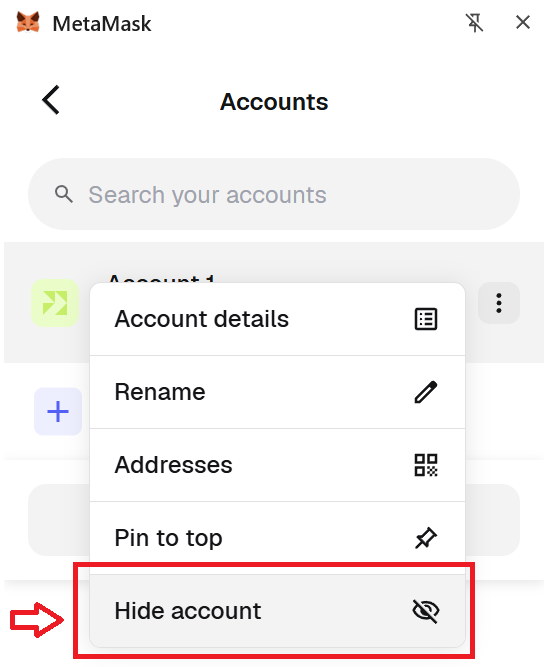
Select “Hide account.” The account disappears from your main list right away. It is not gone, just out of sight.
To bring it back later, open the account selector, click “Hidden accounts,” then click the three dots next to the account you want and choose “Show account.”
How to Remove an Imported Account (Browser Extension)
This method applies to accounts you imported with a private key or a JSON file, and to hardware wallets. It works on an SRP-based wallet. If you created your wallet through Google or Apple sign-in, you will only see the hide option instead.
Step 1. Open the Account Selector
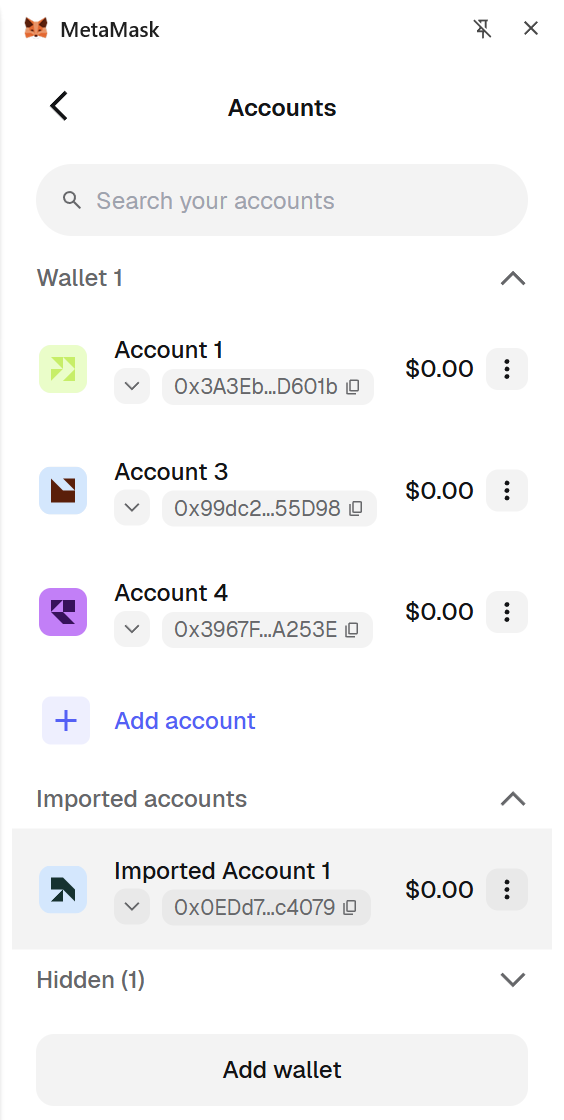
Click your account name with the down-arrow at the top left of the extension to open the Accounts screen. Imported accounts appear under their own “Imported accounts” heading (named like “Imported Account 1”), and hardware wallets are grouped separately, so both are easy to spot.
Step 2. Open Account Details
Click the three vertical dots to the right of the imported account, then choose “Account details.”
Step 3. Click “Remove Account”
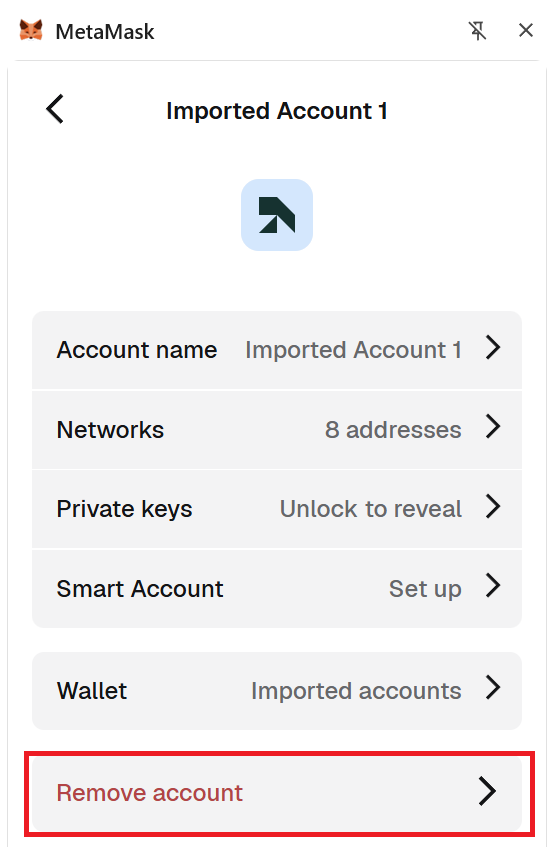
Inside Account details, click “Remove account” and confirm when prompted. The account is taken out of your wallet immediately. Because this is an imported account, back up its private key or seed phrase first if you ever plan to access it again, since MetaMask will not automatically restore it for you.
How to Remove or Hide Accounts on Mobile (iOS and Android)
The mobile app is more limited than the extension, and this trips up a lot of people. Here is what actually works on a phone:
- Only hardware wallet accounts can be removed on mobile.
- Accounts imported with a private key cannot be removed on mobile.
- Hiding accounts is not available on mobile at all.
If you need to remove a private-key import or hide a created account, do it from the browser extension instead.
Step 1. Open the Account Selector in the App
Unlock the app, then tap your account name at the top of the wallet view to open the account selector.
Step 2. Remove the Hardware Wallet Account
Tap the three vertical dots to the right of the hardware wallet account, choose the remove option, and confirm. The account is cleared from the app.
How to Remove MetaMask Entirely
If you want the extension off your browser altogether, right-click the MetaMask icon in your browser toolbar and choose “Remove from Chrome” (the wording is similar in other browsers). Keep in mind this does not delete anything on the blockchain. Your addresses remain, and if you reinstall MetaMask and restore with your Secret Recovery Phrase, your accounts come back. Save your recovery phrase before you uninstall, or you will lose access.
FAQ
Can I remove an account I created inside MetaMask?
No. Created accounts are derived from your Secret Recovery Phrase, and their addresses live on the blockchain permanently, so MetaMask does not let you remove them. Your only option is to hide them, and hiding works only in the browser extension.
Which accounts can actually be removed?
Imported accounts (added with a private key or JSON file) and hardware wallets, as long as your wallet is based on a Secret Recovery Phrase. If you set your wallet up with a Google or Apple login, those accounts are linked to that login and can only be hidden.
How many MetaMask accounts can I have?
As many as you want. You can create unlimited accounts inside a single MetaMask wallet. MetaMask is non-custodial, so it runs without any central control and without KYC verification.
Are MetaMask accounts linked to each other?
Accounts you create each get their own distinct address, and from the outside there is no way to tell that two addresses belong to the same wallet. The one exception is a social login wallet, where the accounts are tied to your Google or Apple account behind the scenes for management purposes.
Does uninstalling MetaMask delete my accounts?
No. Removing and reinstalling the app or extension does not erase anything, because the blockchain keeps every address on record. When you restore with your Secret Recovery Phrase, MetaMask re-adds the accounts that had activity. Imported accounts and hardware wallets are not restored automatically, so keep their private keys or seed phrases backed up.
Conclusion
MetaMask remains one of the most popular self-custody wallets, and it now stretches across Ethereum, Bitcoin, Solana and more. Cleaning up your account list is straightforward once you know the rule that governs it: created accounts can be hidden, while imported accounts and hardware wallets can be removed. The extension gives you the full set of options, and the mobile app handles only hardware wallet removals. Whatever you clear out, the address stays on-chain, so keep your recovery details safe and you can always find your way back.



Alex is Editor-in-Chief of Coindoo and co-founder of Millennial Media Group, with nearly a decade of experience covering financial markets - crypto first, then everything else. It started in 2016 with Bitcoin. Like most people at the time, he didn't fully understand it - so he kept digging. Blockchain, tokenomics, the projects, the cycles. That curiosity never stopped, and eventually pulled him into traditional markets too: equities, commodities, macro. Not because he left crypto behind, but because you can't properly understand one without the other. What drives him is straightforward: he wants to know why something is happening, not just that it's happening. Most market coverage stops at the headline - price up, price down, here's a chart. Alex finds that kind of reporting actively unhelpful. If you walk away from an article without understanding the mechanism behind the move, what did you actually learn? He holds a degree in Tourism from New Bulgarian University - not the most obvious path into financial markets, but markets have a way of pulling in people who are simply too curious to stay out. He has authored over 200 in-depth analyses and more than 10,000 articles across crypto and traditional finance. He still thinks every day in markets teaches him something new. That's probably why he hasn't stopped.